Free tool
Add text to image
Put up to 4 lines of text anywhere on your photo. Pick the font, size, colour, outline and alignment, drag each text into place and download a PNG at your photo's size.
The tool loads here. It needs JavaScript, and runs in your browser.
Our example
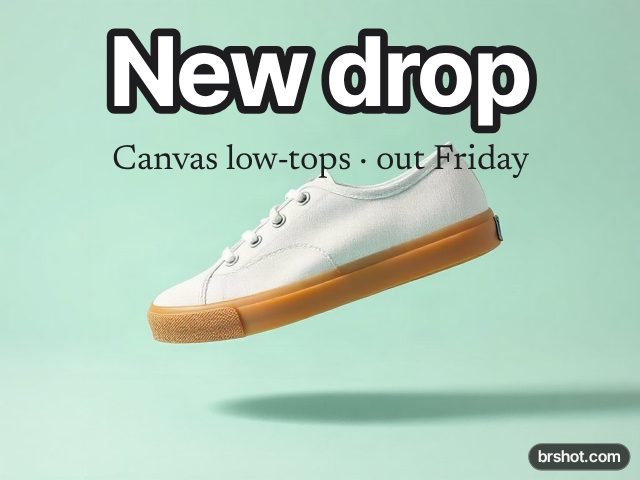
What it is good for
- Write a headline and a price on a product photo for a post or an ad.
- Add a title to a Story image and keep it clear of the bars with the safe-zone guides.
- Put a quote or a date on a photo in a serif, a mono or a handwritten font.
- Label a screenshot or a photo for a slide or a how-to.
How it works
- Add your photo, or start with our sample.
- Write the first text, then pick its font, size, colour and outline. Press Add text for up to 4 layers.
- Drag each text on the preview, or use the position sliders. Turn on the Story guides for a 9:16 photo.
- Press Download PNG.
Facts
| Price | free |
|---|---|
| Where it runs | in your browser; nothing is uploaded |
| Text layers | up to 4, each with its own font, size, colour, outline colour and width, alignment and position |
| Fonts | Inter Tight, Newsreader and IBM Plex Mono, plus fonts on your device such as Impact, Arial, Georgia and Courier New |
| Guides | Story safe-zone guides on the preview (about 14% top, 20% bottom); never in the file |
| Output | PNG at your photo's size, up to 2160 px on the long side, with a small brshot.com mark bottom-right |
| Mark | a small brshot.com mark in the bottom-right corner of the image it makes |
Questions
- How do I add text to a picture?
- Add your photo here, type your text in the Text box and drag it where you want it on the preview. Set the font, size and colour, then press Download PNG.
- Can I add more than one text to an image?
- Yes. Press Add text for up to 4 text layers. Each one has its own font, colour, outline and position; click a text on the preview to edit it.
- How do I put an outline around text on a photo?
- Move the Outline width slider above 0 and pick the outline colour. A dark outline keeps light text readable on a busy photo.
- Will the safe-zone guides show in my image?
- No. The Story guides are drawn on the preview only, to help you keep text clear of the bars. The PNG has your photo and your text.
- Is my photo uploaded?
- No. It runs in your browser, on your device. The PNG carries a small brshot.com mark in the bottom-right corner.
Part of
More free tools
A/B test calculatorAspect ratio calculatorBefore and after makerBlur and pixelateCharacter counterCollage makerCPM calculatorCTR calculatorGIF makerColour picker from imageImage compressorImage converterImage resizerImage splitterInstagram fontsPhone and browser mockupMeme generatorNo-crop borderQR code with logoROAS calculatorSafe-zone checkerSocial image resizerUTM link builderVideo frame extractorWatermark makerYouTube banner maker
Free credits every month
Sign in with Google and get 50 free credits every month. Unused credits do not roll over. Your credits also work in Claude Code, Codex and OpenCode through the BrShot MCP server.
Signing in shares your Google email address with BrShot; the privacy note says what we keep and for how long. Privacy note.