Flow · 2 steps · our run used 30 credits
Clean product cutout: an AI flow, step by step
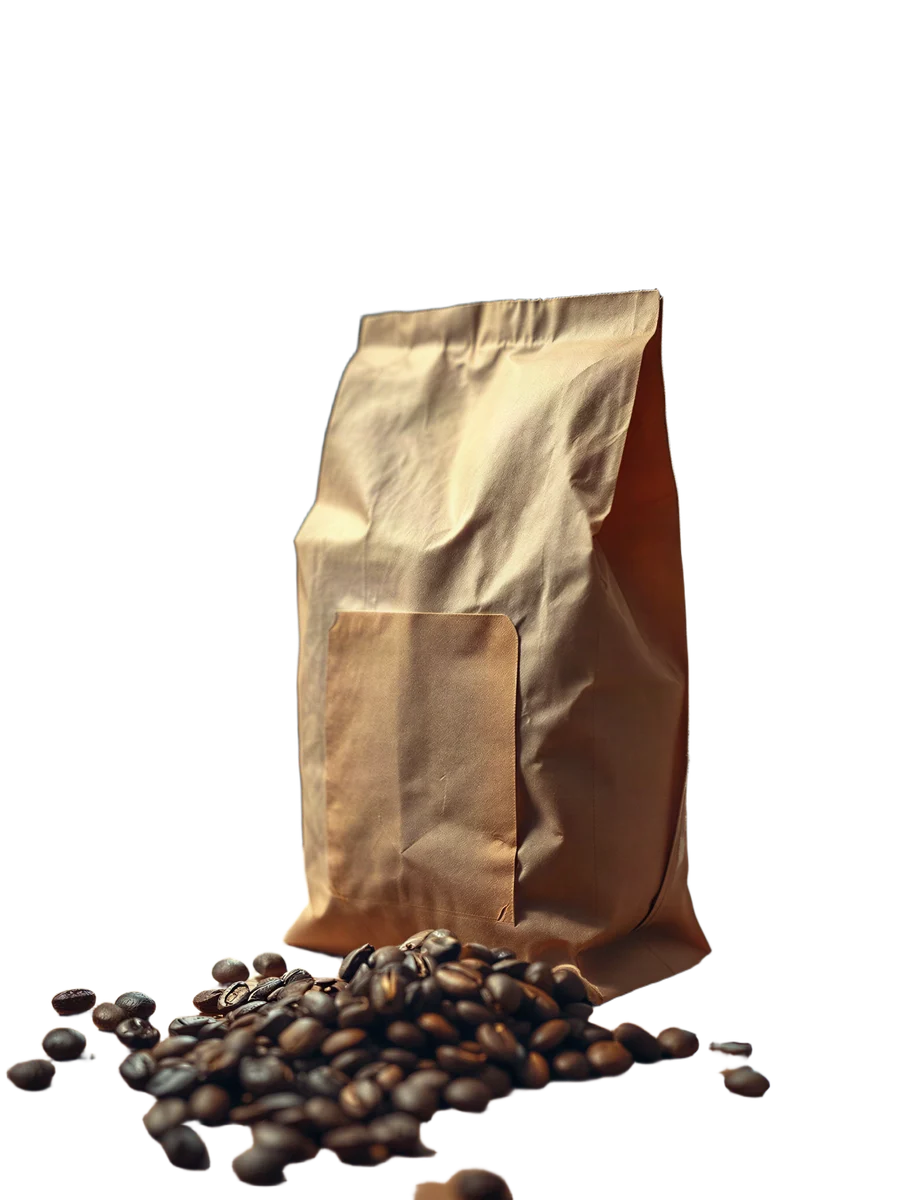
The flow sharpens your photo first and cuts it out last, so the transparent PNG is both clean and large.
Result
Steps
Along the way

What you give it
- Your product photo
What it is good for
- Store listings on white or any colour
- A product layer for a design or a slide
- A cut-out to place into a new scene
Tips
- Use the largest photo you have. The flow sharpens it before it cuts the product out.
- Keep the cutout as the last step. If you edit the image after the cutout, the edit can fill the transparent background again.
- The result has a transparent background. To place the product in new scenes, run the product backgrounds flow.
From Claude Code
Coming next to the MCP server: characters, projects and flows.
Questions
- Why upscale before the cutout?
- A cutout keeps its transparency only as the final step, and a larger image gives a cleaner edge.
- How do I get a white background?
- Place the transparent PNG on white in any editor, or ask the image editor for a white studio background.
- How much does the "Clean product cutout" flow cost?
- Our run used 30 credits. The quote is shown before a run starts, and the whole estimate is held so a run never stops halfway on the daily cap.
Free credits every month
Sign in with Google and get 50 free credits every month. Unused credits do not roll over. Your credits also work in Claude Code and Codex through the BrShot MCP server.
Signing in shares your Google email address with BrShot; the privacy note says what we keep and for how long. Privacy note.